SFM Models: Complete Guide to Finding, Importing, Creating & Optimizing Models (2026)

You find the perfect model for your next animation, download it, and import it into Source Filmmaker. Instead of seeing your character, you’re met with missing textures, error models, or assets that don’t appear at all. A task that should take a few minutes quickly turns into hours of searching through forums and trying different fixes.

Most of these issues happen because creating and using SFM Models involves more than downloading files. Understanding model formats, folder structure, import steps, and optimization makes the entire process much smoother.

This guide walks you through every stage, from finding trusted models and importing them correctly to creating custom assets with Blender, optimizing performance, and fixing common errors. 

By the end, you’ll have a complete workflow that helps you build, manage, and use Source Filmmaker models with confidence.

What Are SFM Models?
what are sfm models

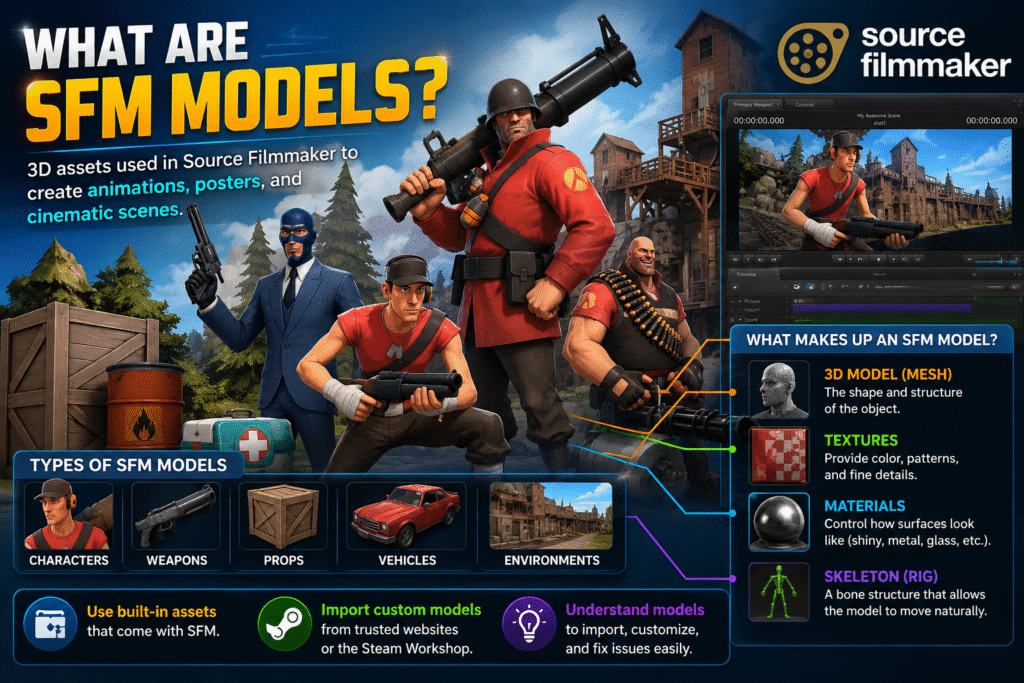
Source Filmmaker models are 3D assets used in Valve’s Source Filmmaker to create animations, posters, and cinematic scenes. These models include characters, weapons, props, vehicles, and environments that help bring a project to life.

A model is more than just a 3D object. It includes textures for appearance, materials for surface details, and a skeleton that allows it to move naturally during animation. All these elements work together to display the model correctly in Source Filmmaker.

You can use the built-in assets that come with SFM or import custom models from trusted community websites and the Steam Workshop. Understanding how these models work makes it easier to import, customize, and troubleshoot them while creating your projects.

Types of SFM Models

The most common types of SFM models include: 

  • SFM Character Models – Playable characters, NPCs, and custom avatars.
  • Prop Models – Everyday objects, furniture, tools, and decorative items.
  • Weapon Models – Guns, swords, explosives, and other equipment.
  • Vehicle Models – Cars, trucks, aircraft, boats, and other vehicles.
  • Environment and Map Models – Buildings, terrain, rooms, and complete scene layouts.

Where to Download SFM Models Safely

Here are some of the most popular websites for downloading SFM models safely: 

Steam Workshop

If you’re looking for SFM workshop models, Steam Workshop is one of the safest and easiest places to start. It is integrated with Steam, so you can browse thousands of community-created characters, props, maps, and other assets in one place.

To download a model, open the Source Filmmaker Workshop page, choose the asset you want, and click Subscribe. Steam automatically downloads the files and adds them to your Source Filmmaker library, so you don’t have to move files manually. 

Each workshop page also includes screenshots, user ratings, and creator information, helping you choose reliable models with confidence.

SFMLab

SFMLab is a popular community platform for downloading custom SFM models that aren’t available on Steam Workshop. It hosts characters, props, environments, textures, and other assets shared by artists for machinima and 3D animation projects.

Most downloads are available as ZIP or 7Z files. You’ll need to extract the files and install them manually in Source Filmmaker. Many creators also include helpful setup guides with their uploads.

GameBanana

GameBanana is a trusted community website where you can download mods and SFM props for Source Filmmaker. You’ll also find character models, maps, textures, and other community-created assets.

Each download page includes user ratings, screenshots, and community feedback. These details make it easier to find high-quality assets before downloading them.

Open3DLab

Open3DLab is a community platform that offers SFM maps, characters, props, and other assets for Source Filmmaker projects. It is a useful option when you need content that isn’t available on Steam Workshop.

Many uploads include additional resources such as textures, animations, or model variations. Make sure you download all the required files so the asset works correctly in your project.

DeviantArt

DeviantArt is home to many artists who share SFM characters and other custom assets for free. You’ll also find character ports, outfits, accessories, and model packs created by experienced members of the SFM community.

Download models from trusted creators with a good reputation. Use the links provided by the artist and avoid files from unknown or unverified sources. This helps you download authentic assets and reduces the risk of unsafe files.

Sketchfab (Compatible Assets)

Sketchfab offers a large collection of free and paid 3D models created by artists from around the world. Many of these models can be downloaded in formats like FBX or OBJ, making them useful for a blender to SFM workflow.

These models are not ready to use in Source Filmmaker. You’ll need to import them into Blender first, prepare the model, and then convert it before using it in your SFM project.

Essential File Formats Used in SFM Models

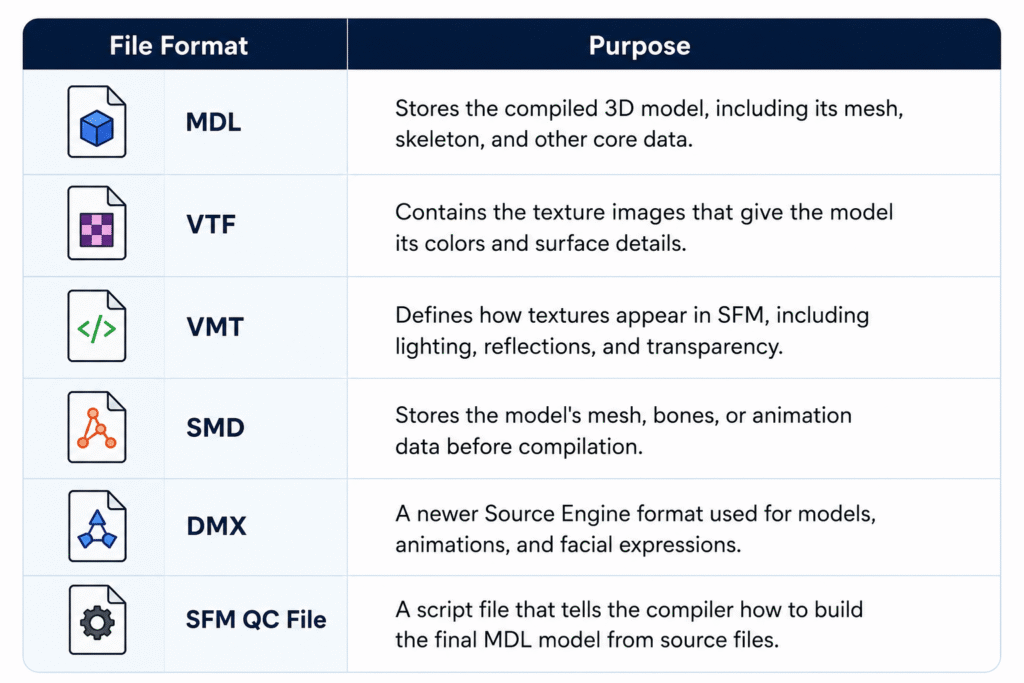
Every SFM model relies on different file formats, and each one has a specific job in displaying, compiling, and animating the model correctly.

file formats used in sfm models

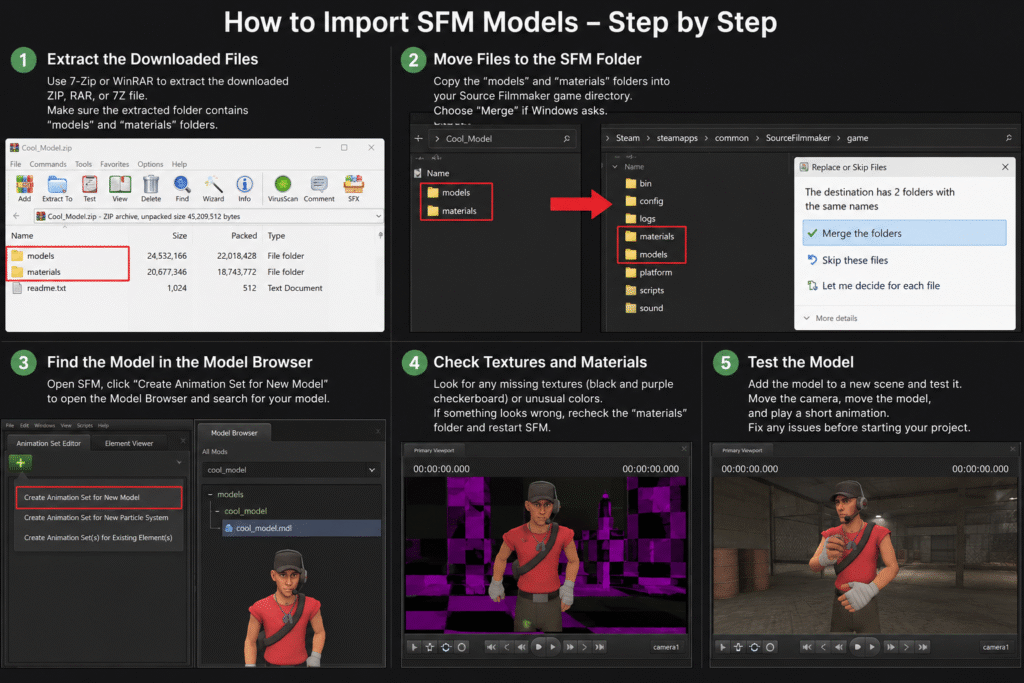
How to Import SFM Models

import sfm models


To import models into SFM, follow these steps in the correct order to ensure the model loads properly and works as expected: 

Extract the Downloaded Files

Most SFM models are downloaded as ZIP, RAR, or 7Z files to keep all the required files together. Before you can use the model, extract the archive with a tool like 7-Zip or WinRAR.

After extracting, open the new folder and make sure it contains folders such as models and materials. These folders include the files needed to install and display the model correctly in Source Filmmaker.

Move Files to the SFM Folder

Open the extracted folder and locate folders such as models and materials. Copy these folders into your Source Filmmaker game folder so the software can find the new assets.

If Windows asks to merge folders, choose Merge instead of replacing existing files. This keeps your current SFM files intact while adding the new model to your library.

Find the Model in the Model Browser

Open Source Filmmaker and create or open a session. Select Create Animation Set for New Model to open the Model Browser, then browse or search for the model you just installed.

If you can’t find the model, check that the files were copied to the correct folders and restart Source Filmmaker if needed. Some Workshop models may also appear under the Workshop filter in the Model Browser.

Check Textures and Materials

After importing the model, check that all textures and materials load correctly. If you see black and purple checkerboard patterns, missing textures, or unusual colors, some required VTF or VMT files may be missing or placed in the wrong folder.

If you notice any issues, verify that the materials folder was copied correctly and restart Source Filmmaker after making changes. This allows SFM to reload the updated files and display the model properly.

Test the Model

Add the model to a new scene and check that it loads correctly. Rotate the camera, move the model, and play a short animation to confirm that the textures, materials, and skeleton are working as expected.

If you notice SFM errors, such as missing parts, invisible models, or broken textures, review the previous installation steps before continuing with your project. Testing the model early helps you identify and fix problems before you start animating.

How to Create Custom SFM Models

Creating a custom model involves designing, SFM model compilation, and importing it into Source Filmmaker. Follow these steps in the correct order: 

Create the Model in Blender

Start by creating your 3D model in Blender using basic shapes or by editing an existing model. Keep the design clean and avoid adding unnecessary details, as simpler models are easier to edit and optimize.

Before moving to the next step, check that the model has the correct shape, scale, and proportions. Fixing these details early saves time and reduces the need for changes later.

Create UV Maps

UV mapping tells Blender how a 2D texture should wrap around a 3D model. Create a UV map before adding textures so the colors and details appear in the correct places.

After unwrapping the model, check the UV layout for overlapping or stretched areas. A clean UV map helps textures appear sharp and prevents visual distortions on the model.

Rig the Model

Rigging is the process of adding a skeleton, also called an armature, to your 3D model. This allows the model to move naturally when you create animations in Source Filmmaker. 

After adding the bones, test a few simple movements to make sure the mesh deforms correctly. Fix any parts that bend or stretch incorrectly before moving to the export step.

Export the Model Using Blender Source Tools

After the model is ready, use Blender Source Tools to export it in a Source Engine format such as SMD or DMX. These formats are supported by Crowbar and are used to prepare the model for Source Filmmaker.

Before exporting, check that the correct model and armature are selected. Save the exported files in an easy-to-find folder so you can use them during the compilation step.

Compile the Model with Crowbar

Open Crowbar and load your QC file. During SFM Compile, Crowbar uses the QC file along with the exported model files to create the final MDL file that Source Filmmaker can read.

When the compilation is complete, check the results for any errors or warnings. If the process finishes successfully, your compiled model is ready for the final import step.

Import the Model into Source Filmmaker

After SFM Compilation is complete, copy the compiled model files to the correct Source Filmmaker folders if they are not already there. Then open Source Filmmaker and use the Model Browser to locate and load your new model.

Once the model appears in your scene, check that the textures, materials, and animations work correctly. If everything loads without errors, your custom model is ready to use in your animation project.

Need Help with SEO?

Our team helps brands improve rankings through high-quality backlinks, content marketing, and proven SEO strategies. Let's discuss your goals and create a customized plan to grow your organic traffic.

Best Tools for Creating SFM Models

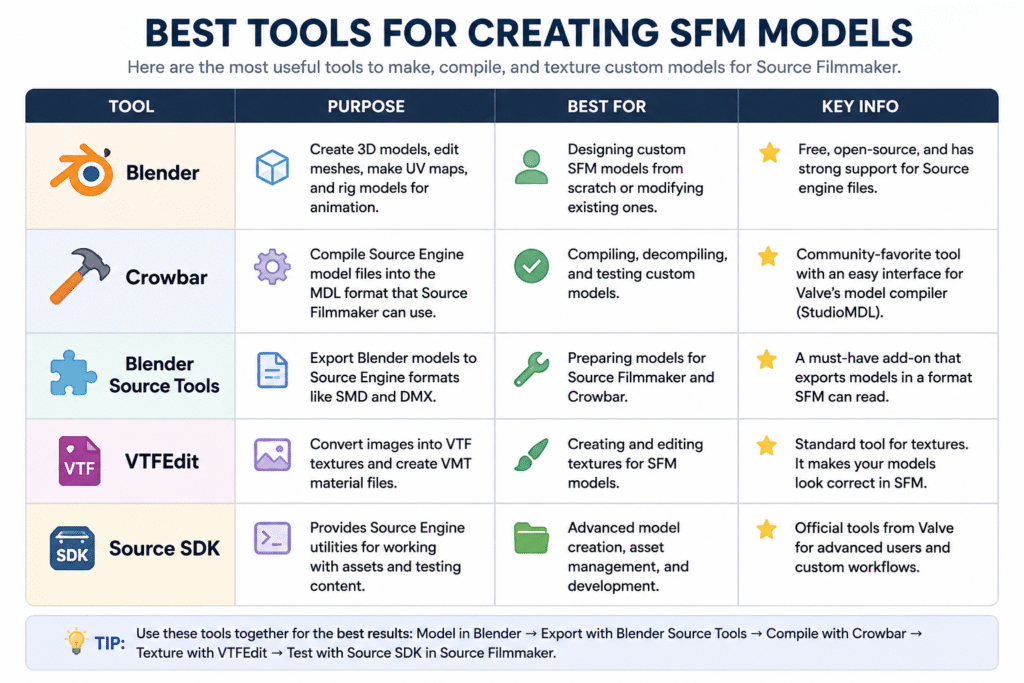
The table below highlights the most commonly used SFM tools, along with their purpose, best use case, and key features.  

tools for sfm models

How to Optimize SFM Models

Use below SFM optimization tips to improve performance and reduce lag. 

Reduce Polygon Count

Models with a high polygon count require more processing power and can slow down your scene. Use simpler models whenever possible, especially for background objects that don’t need a lot of detail.

If you’re creating your own model, remove unnecessary geometry without changing its overall shape. This helps improve viewport performance and reduces rendering time, especially in larger scenes.

Optimize Textures

Large texture files use more memory and can affect performance. Choose a texture resolution that matches the model instead of using high-resolution images for every asset. 

Remove textures that are no longer needed and compress image files when possible. This reduces memory usage and helps Source Filmmaker load scenes more efficiently.

Optimize Materials

Use only the material settings your model needs. Effects like reflections, transparency, and complex shaders can increase rendering time and reduce performance. 

Keep material files simple and remove settings that aren’t being used. Well-optimized materials help models render more efficiently while maintaining a consistent appearance.

Use Level of Detail (LOD) Models

Level of Detail (LOD) models use different versions of the same model with varying amounts of detail. Source Filmmaker can display a simpler version when the model is farther from the camera, helping improve performance.

Use high-detail models for close-up shots and lower-detail versions for background scenes. This reduces the workload on your system without noticeably affecting the final animation.

Optimize Bones and Rigging

Use only the bones your model needs for animation. Extra or unused bones can make the rig more complex and increase the amount of processing required.

Check that each bone is linked correctly and moves the right part of the model. A clean rig makes animations smoother and helps prevent unexpected movement during posing or animation.

Optimize Lighting and Effects

Use only the lights and visual effects needed for your scene. Too many lights, shadows, or particle effects can slow down viewport performance and increase rendering time.

Start with a few lights and add more only when necessary. This keeps your scene easier to manage while maintaining clear and consistent lighting.

Improve Scene Performance 

Keep only the models, lights, and effects needed for your scene. Fewer objects make SFM rendering smoother and reduce the time it takes to preview or render your animation.

Close unused animation sessions and remove assets you no longer need. A clean scene is easier to work with and helps maintain consistent performance as your project grows.

Common SFM Model Problems and Fixes

This SFM tutorial covers common model issues and their solutions. Use the table below for quick fixes. 
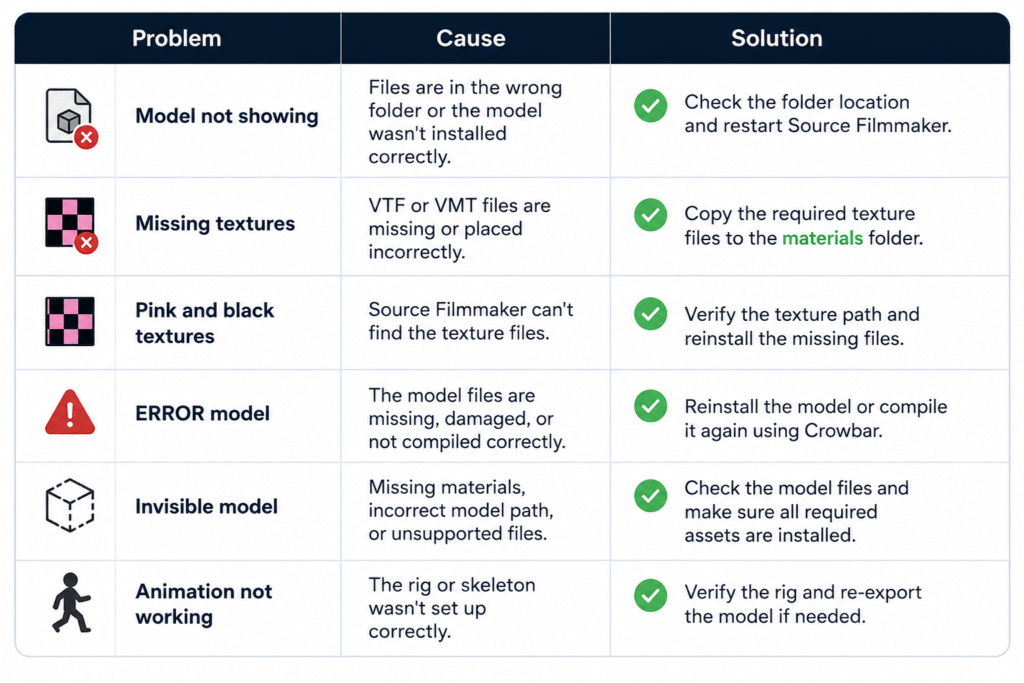
common problem

Best Practices for Managing SFM Models

Use these best practices from this Source Filmmaker guide to keep your models organized and avoid common issues over time.

  • Organize Your Model Library: Store characters, props, maps, and other assets in separate folders for easier access.
  • Use Clear File Names: Use simple, descriptive names to identify files quickly.
  • Keep Backup Copies: Back up custom models before editing or replacing files.
  • Remove Duplicate Assets: Delete duplicate or unused models to save storage space.
  • Store Related Files Together: Keep model files, textures, and materials in their correct folders to avoid missing file issues.
  • Download Models from Trusted Sources: Download models from reliable websites to ensure they are complete and compatible

Wrap Up

Building a smooth workflow starts with understanding how models are downloaded, imported, created, and managed. Following the right steps helps you avoid common issues like missing textures, loading errors, and compatibility problems before they affect your project.

With the right approach, SFM Models become much easier to work with. Use trusted resources, keep your files organized, and optimize your assets regularly to create cleaner scenes and a more efficient animation workflow.

FAQs

How to import models into SFM from Workshop?

Open the model’s Workshop page and click Subscribe. Steam will download the files automatically. Restart Source Filmmaker if needed, then open the Model Browser to find and use the model.

How to convert Blender models to SFM?

Create or edit your model in Blender, export it using Blender Source Tools, compile it with Crowbar, and then import the compiled files into Source Filmmaker.

Can I use models from other Source Engine games in SFM?

Yes. Many models from games like Team Fortress 2, Half-Life 2, and Left 4 Dead can be used in Source Filmmaker after they are extracted and placed in the correct folders.

Are SFM models free to use?

Many SFM models are free to download from community websites. However, always check the creator’s license before using a model in public or commercial projects.

Do all SFM models work with every version of Source Filmmaker?

No. Some models may require additional files, specific Source Engine assets, or manual setup. Always check the model’s requirements before downloading
SFM Compile: Complete Guide to Workflow, Process, QC Files & Common Errors (2026)

You spend hours creating a 3D model. The textures look perfect. The animations are ready. Then you import it into Source Filmmaker, and instead of your character, you see a purple-and-black checkerboard or nothing at all. It is a frustrating moment that almost every beginner experiences.

SFM Compile solves that problem. It converts 3D models from formats like FBX or OBJ into files that the Source Engine can read. It also packages textures, animations, physics data, and other assets using a QC file, so your model loads correctly in Source Filmmaker.

By the end of this guide, you’ll know how to compile models correctly, understand the files created during compilation, avoid common mistakes, and follow a workflow that saves time. 

Software You’ll Need for SFM Compile

SFM Compile

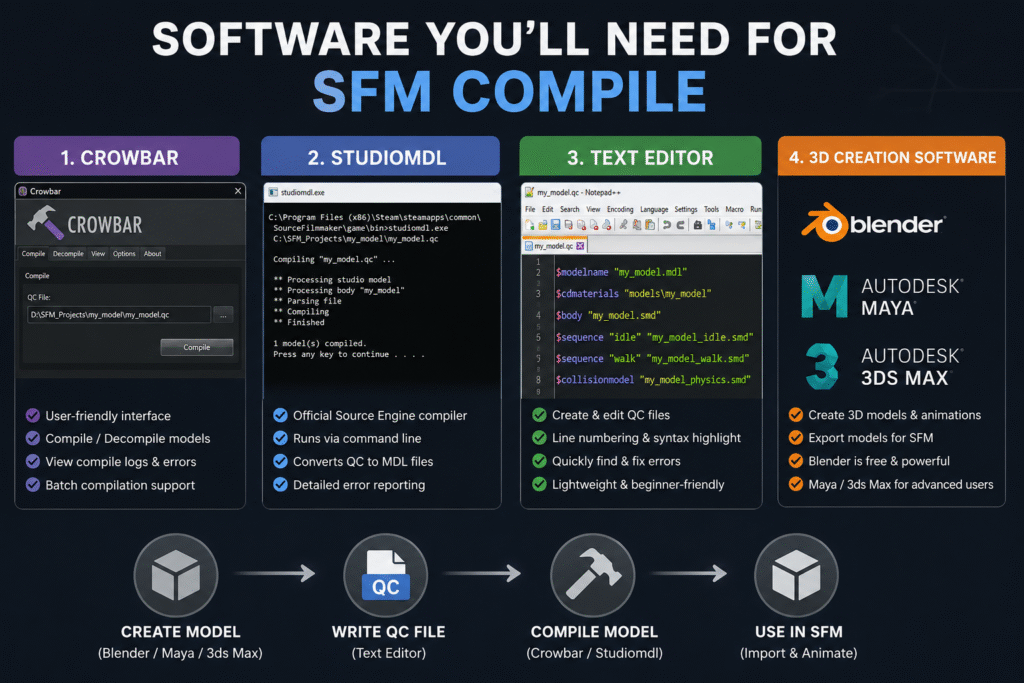
Before you compile a model, you need a few essential tools. Each piece of SFM compile software has a specific job in the workflow. 

Crowbar Compilation Tools

Crowbar is one of the most popular tools for compiling Source Filmmaker models. Instead of typing long command-line instructions, you can compile models through a simple interface. This makes the process much easier, especially if you’re new to SFM.

You can use Crowbar to compile or decompile models, check compile logs, and quickly spot errors if something goes wrong. It also supports batch compilation, so you can process multiple models without repeating the same steps for each one.

Studiomdl Command Line Utility

Studiomdl is Valve’s official model compiler for the Source Engine. It is included with the Source Filmmaker installation and is usually located in the bin folder. The tool reads your QC file and converts your model into the MDL files that Source Filmmaker can load.

Unlike Crowbar, Studiomdl runs through the command line, so you need to enter compile commands manually. It gives you more control over the compilation process. It also shows detailed error messages that help you find and fix problems. 

Text Editor Needs

You’ll also need a text editor to create and edit QC files. Notepad++ is a popular choice because it is lightweight, easy to use, and works well with plain text files.

Features like line numbering and syntax highlighting make QC scripts easier to read. If the compiler reports an error, you can quickly find the correct line and fix the problem without searching through the entire file.

3D Creation Software

Every SFM project starts with a 3D modeling program. Blender is the most popular choice because it’s free, powerful, and supports plugins that simplify exporting models for Source Filmmaker.

Professional artists may also use Autodesk Maya or 3ds Max to create custom models and animations. These are paid tools with advanced features, but for most beginners and hobbyists, Blender provides everything needed to build and prepare models for compilation.

SFM Compile: A Step-by-Step Guide

The SFM compile process follows a series of simple steps. Completing each one in the right order helps your model compile correctly and reduces errors. 

Set Up Your Model Assets 

Organize your model, textures, materials, and QC file into the correct folders before compiling. A clean folder structure helps the compiler locate every file and prevents path-related errors.

Keep your model optimized and use Source Engine bone naming conventions. Export the main model and collision mesh as separate SMD files. Also, verify that all VMT and VTF material files are in the correct location. Missing material files or incorrect paths usually cause the purple-and-black checkerboard texture in Source Filmmaker.

Before compiling, check that every file name and path matches the entries in your QC file. This simple step can prevent many common compile errors.

Write a Valid QC File 

An SFM QC file tells the compiler how to build your model. It defines where your model files are stored, where to save the compiled output, which materials to use, and which animations or physics data to include. 

QC Directive Purpose
$modelname Sets the name and output location of the compiled model.
$body Specifies the main SMD model file to compile.
$cdmaterials Points to the folder containing your material (VMT) files.
$sequence Adds animation sequences to the compiled model.
$collisionmodel Defines the collision mesh used for physics interactions.

Before compiling, review every file name and folder path in the QC file. A single typo or missing file reference can prevent the model from compiling successfully.

Run the SFM Compiler

Once your model assets and QC file are ready, it’s time to run the SFM compiler. If you’re using Crowbar, open the Compile tab, select your QC file, and click Compile. Crowbar displays the compile log in a readable format, making it easier to spot missing files or incorrect paths.

If you’re using studiomdl.exe, open the command line, navigate to the bin folder in your Source Filmmaker installation, and run the compiler using your QC file as the input. After the process finishes, review the compile log for warnings or errors before importing the model into Source Filmmaker.

Perform Final Model Testing

Open Source Filmmaker and load your compiled model into a new scene. Check that the model appears correctly, the textures load properly, and the animations play without errors. Move the model’s joints to confirm the bones are working as expected.

If you notice missing textures, distorted meshes, or physics problems, review the compile log first. The log often identifies the QC directive or file that caused the issue, making it much faster to find and fix the problem before compiling again.

Need Help with SEO?

Our team helps brands improve rankings through high-quality backlinks, content marketing, and proven SEO strategies. Let's discuss your goals and create a customized plan to grow your organic traffic.

Understanding SFM Compile Output Files

Every successful compilation generates several output files. Each file has a specific role, and if one is missing, your model may not load or function correctly.

File Purpose
.MDL The main model file that Source Filmmaker loads.
.VVD Stores vertex data used to render the model correctly.
.DX90.VTX Contains optimized mesh data for DirectX 9 rendering.
.SW.VTX Stores mesh data for software rendering compatibility.
.PHY Holds collision and physics information if the model uses physics.
.ANI  Stores animation data for some compiled models.

If any required output file is missing or corrupted, Source Filmmaker may fail to load the model or display it correctly.

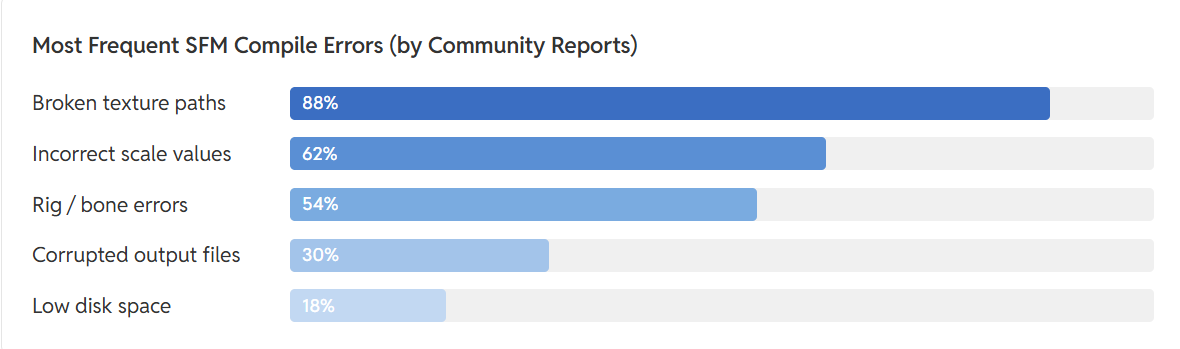
Common SFM Compile Errors and Their Solutions

sfm compile errors

                                                      Source: FOSS post

Most common SFM compile errors are caused by missing files, incorrect QC settings, or invalid file paths. The compile log usually identifies the file or QC directive responsible.

Error Cause How to Fix It
Purple-and-black checkerboard textures Missing or incorrect VMT/VTF files, or an invalid $cdmaterials path Verify the material files exist and update the $cdmaterials path in the QC file.
Model is invisible or the wrong size Incorrect export scale or unit settings Re-export the model using the correct scale and apply transforms before exporting.
Bones don’t move correctly Missing or incorrectly named bones, or rigging errors Check the skeleton hierarchy and use Source Engine bone naming conventions.
Model fails to compile Missing SMD files, incorrect file paths, or QC syntax errors Review the compile log and fix the reported file path or QC directive.
Source Filmmaker crashes when loading the model Corrupted compile output or unsupported model data Recompile the model after fixing errors and replace any damaged output files.

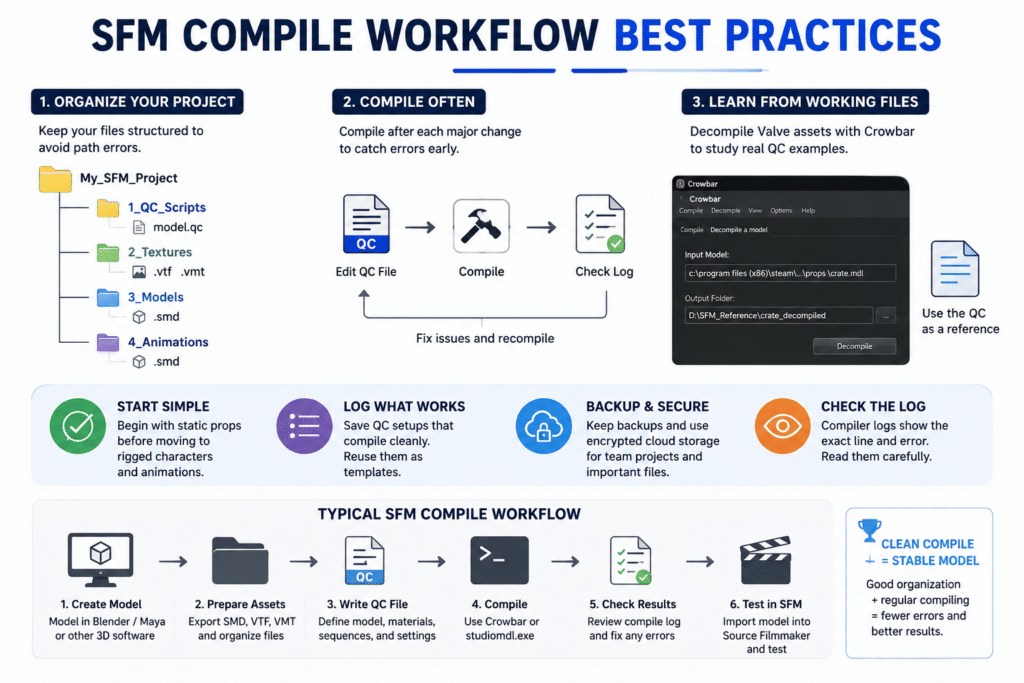
SFM Compile Workflow Best Practices

SFM Compile Workflow

Following a few SFM compile best practices can help you avoid repeated errors and make your workflow easier to manage.

  • Organize your project into separate folders for models, textures, materials, and QC files. This keeps file paths consistent and reduces compile errors.
  • Save a copy of every QC file that compiles successfully. You can reuse it as a template for future projects.
  • Start with simple static models before compiling animated characters or complex rigs.
  • Compile after every major change instead of making multiple edits at once. This makes it easier to identify what caused an error.
  • Decompile Valve’s default models with Crowbar to study working QC files and folder structures.
  • Keep backup copies of your project files. If you’re working with a team, use secure cloud storage with version history to avoid losing changes.

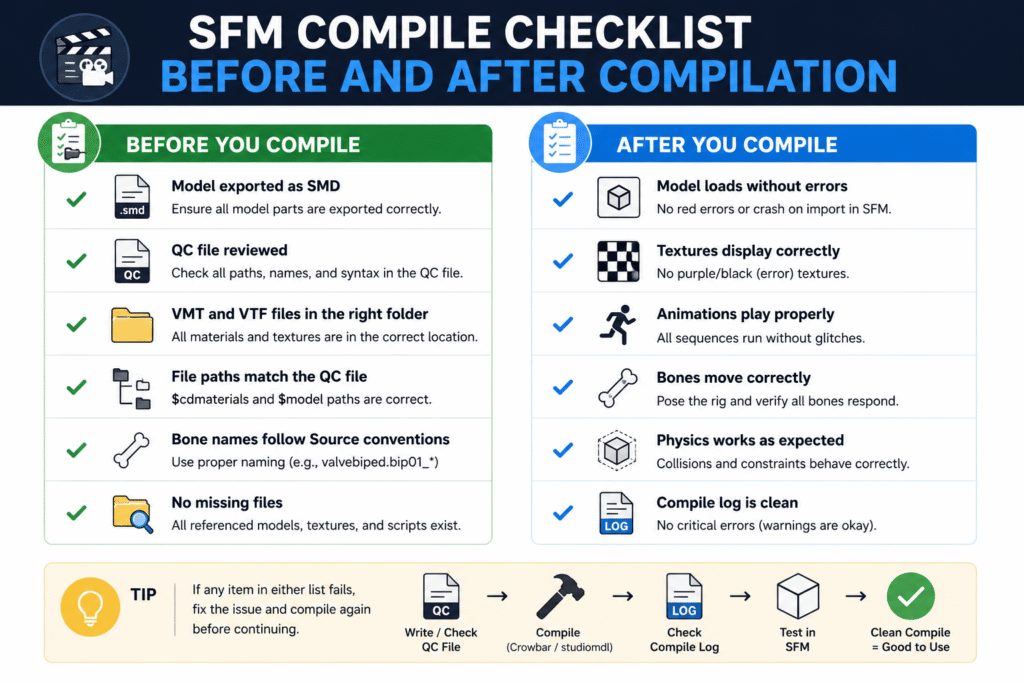
SFM Compile Checklist Before and After Compilation

SFM Compile checklist

A quick checklist helps you catch small mistakes before they become compile errors. Review these points before compiling and after importing your model into Source Filmmaker.

Beginner’s Guide to SFM Compile

SFM compile for beginners becomes much easier when you learn one step at a time. Start with simple models, understand the basics, and build confidence before working on complex projects. 

Start with a Simple Low-Polygon Model

Start with a simple static prop instead of a fully rigged character. A low-polygon model with a single texture is easier to compile and helps you learn the workflow without dealing with bones, animations, or complex physics.

Once the model compiles successfully, test it in Source Filmmaker to confirm it loads correctly. After that, you can move on to animated models and more advanced projects.

Install and Set Up Your SFM Tools 

Install Crowbar, studiomdl.exe, and a text editor like Notepad++ before you start compiling models. Also, confirm that Crowbar points to the correct studiomdl.exe location, or the compile process won’t run.

Keep your project files in one workspace with separate folders for models, textures, materials, and QC files. A well-organized setup reduces file path errors and makes the entire workflow easier to manage.

Create Your First QC File

Create your first QC file manually, even if Crowbar can generate one automatically. Writing it yourself helps you understand what directives like $modelname, $body, and $cdmaterials actually do, making future troubleshooting much easier.

Start with only the essential directives and confirm the model compiles successfully. Once the basics work, you can add animations, collision models, and other advanced settings as your project grows.

Compile and Test Your Model 

Don’t wait until your entire project is finished before compiling. Compile the model after each major change, then load it in Source Filmmaker to check that the model, textures, and animations work as expected.

If you find a problem, review the compile log, fix the issue, and compile again. Testing in small steps makes errors easier to identify because you know exactly which change caused them.

Study Existing Decompiled Models

Use Crowbar to decompile Valve’s default models and examine their project files. Looking at real QC files, folder structures, and material paths is one of the fastest ways to understand how a correctly compiled model is organized.

Don’t copy these files directly. Instead, use them as a reference to learn naming conventions, QC directives, and project layouts. This approach helps you avoid common mistakes when creating your own models.

Read More About:- Cybersecurity SEO Agencies

Wrap Up

Learning SFM Compile is less about memorizing commands and more about following a consistent workflow. Organizing your files, creating a clean QC file, checking the compile log, and testing after every change will help you solve most problems before they become difficult to fix. 

As your experience grows, you can move from simple props to fully animated characters and more advanced projects. Keep practicing, study working models, and improve your workflow one step at a time. A solid understanding of the compile process gives you the confidence to create reliable custom assets for Source Filmmaker. 

FAQs

What file types does SFM Compile accept?

SFM Compile uses SMD, DMX, and QC files as input. After compilation, it generates files like MDL, VVD, VTX, and PHY for the Source Engine.

Why does my model show purple-and-black checkerboard textures?

This usually means the material files are missing or the texture path is incorrect. Check the VMT, VTF, and $cdmaterials entries in your QC file.

How long does SFM Compile take?

Simple models usually compile in a few seconds. Larger models with animations or multiple LODs can take several minutes, depending on your computer.

Does SFM Compile work with Source 2?

No. SFM Compile is designed for the original Source Engine. Source 2 uses a different asset pipeline and requires different tools.

Do I need programming knowledge to use SFM Compile?

No. You only need to edit a QC file with basic text commands. Most beginners can compile simple models without any programming experience.

15 Best Cloud Storage Alternatives for Secure File Sharing in 2026

Whether you are working from a home office, own a startup or are part of a remote team, the need is the same. You need a reliable way to store and share files without worrying about who else can get their hands on them. 

OneDrive, iCloud, Dropbox or Google Drive have been the key players in the Cloud Storage space for many years. In 2026, there are many people asking the right questions like: 

What are the Cloud Storage Alternatives?

Who owns my data? 

Can I trust the platform with sensitive documents?

Are there better cloud storage alternatives that give better control?

The answer is a simple Yes! There are plenty of them in the market today and it may be confusing as to which will be the right one for you. This guide covers 15 Best Cloud Storage Alternatives that are designed with privacy, security and ease of use.

Why Look for Cloud Storage Alternatives?

The biggest names in cloud storage are easy to use, but they come with tradeoffs. Many scan your files to serve ads or improve their own products. Some have dealt with data breaches. Others make it hard to leave once you’re in.

If you share medical records, financial documents, legal files, or sensitive business data, you need more than a household name. The platform should be built with protection as its core. Here are 15 cloud storage alternatives to try. 

1. Proton Drive

Best for: People who take privacy seriously

Your files are locked on your device before they ever reach Proton’s servers. Even Proton cannot open them. The service is based in Switzerland, which has some of the strongest data protection laws in the world.

There is a free plan with 1 GB of storage. Paid plans are fairly priced. The app works well on your desktop as well as on your mobile with an easy-to-navigate interface. All the files and filenames are encrypted and independently audited by Securitum. They are also ISO 27001 and SOC 2 Type II certified. 

2. Tresorit

Best for: Businesses handling sensitive files every day

Not even Tresorit can open your files without your permission. That is the foundation on which the whole service is built. It is the most widely used cloud storage by law firms, hospitals and financial teams across the globe.

You get secure sharing links, the ability to wipe files from lost devices and a full activity log. Plans work for both solo users and larger teams. Tresorit offers the best-in-class encryption and is audited by ETH Zurich, Ernst & Young and Computest. It is one of the top performers in independent adversarial testing.

3. Sync.com

Best for: Simple, private storage and one of the best cloud storage alternatives for small businesses

Sync.com is a Canadian company with servers inside Canada. Every file is encrypted before it leaves your device, so your data stays yours. The free plan gives you 5 GB of storage to start.

Shared links can be password-protected and set to expire on a date you choose. It works well for personal use and small business file sharing alike. SOC 2 Type II and HIPAA BAA are available. Some metadata weaknesses were flagged in the ETH Zurich audit.

Need a Proven Cyber Security SEO Strategy?

Explore our Cyber Security SEO Guide to learn how cybersecurity businesses can improve search visibility, attract qualified leads, and build long-term authority online.

4. Internxt

Best for: Businesses that are looking for open-source and decentralized storage

Internxt splits your business files into small encrypted chunks and spreads them across multiple servers. No single server holds your complete file, which makes it much harder for anyone to get to your data.

The code is open-source, so security researchers can check how it works. It has public audits. You can either go for a free tier plan or a paid one. Paid plans are fairly priced. If transparency is of utmost importance to you, then Internxt is the best fit. 

5. pCloud

Best for: Lifetime storage and large media files; Ideal cloud storage services for photographers

pCloud allows you to pay once and own the storage for life. Choose this option if you do not want to deal with monthly bills. It is a rare option in this market and a great deal if you are looking to stick to the same service long-term. 

It handles photos, videos and large files well. Zero-knowledge is only available with the paid Crypto folder add-on which locks your files on your device before they upload. The rest of your storage is AES-256, but keys are held by pCloud. It runs on Windows, macOS, iOS and Android. 

6. MEGA

Best for: Large free storage and sending big files fast

MEGA gives you 20 GB of free storage right away, more than almost any other service at this price point. All files are encrypted end-to-end and MEGA has no way to read them. It has a public audit. 

It can be a solid choice if you need to move large files in quick time. There is also a built-in chat feature. Paid plans help scale up well for teams that need more storage. 

Note: Ownership history has raised trust concerns for some users.

7. Box

Best for: Enterprise teams in regulated industries

Box is a known name in business file sharing for good reason. It meets HIPAA, GDPR and SOC 2 standards, which makes it a go-to for healthcare, finance and legal teams who cannot afford to get compliance wrong. It connects with Microsoft Office, Google Workspace, Slack and Salesforce.

Box offers managed encryption and it holds the keys. Enterprise customers can bring their own keys (BYOK), but it is not zero-knowledge by default. Pricing sits on the higher end, but the feature set backs it up for larger organizations.

8. Nextcloud

Best for: Full control over where your data lives

Nextcloud lets you run your own cloud storage on your own server. Your data never touches a third-party machine. That is about as much control as you can get. 

It is free to download. You will need a server or a hosting plan to run it, which takes some setup. When self-hosted, you control everything. Third-party-hosted Nextcloud depends on the host’s setup. Calendars, contacts and video calls are built in.

9. Backblaze B2

Best for: Developers and teams storing large amounts of data without spending much

Backblaze B2 stores data at a fraction of what Amazon S3 or Google Cloud Storage charges. It is built for developers, small businesses and content creators who need a lot of storage without a big monthly bill. It offers AES-128 server-side encryption. Backblaze holds the keys. SOC 2 Type II certified but not zero-knowledge.

It is not a drag-and-drop file-sharing tool like Google Drive. It works best with apps like Cyberduck or Rclone. For raw storage at low cost, it is one of the best deals in 2026.

10. Egnyte

Best for: Teams that split work between office servers and the cloud

Egnyte ties your local file servers to cloud storage in one place. It is a practical option for companies that need cloud access but still continue to run files on-site for speed and compliance. Egnyte is not zero-knowledge by default, but supports customer-managed encryption keys via AWS KMS or Azure Key Vault. It is SOC 2, ISO 27001, HIPAA certified.

A lot of construction, media and life sciences businesses use this. You get fine-grained permissions, audit trails and built-in ransomware protection. It is a business tool with business-level pricing.

11. Icedrive

Best for: Clean design and proper privacy for those on a budget

Icedrive is popular for its simple interface and strong security. It uses Twofish zero-knowledge encryption

The free plan gives you 10 GB. Paid plans cost less than most rivals. The desktop app works like a virtual drive you can drag files in and out of. A good pick if you want something simple without compromising on privacy.

Note: ETH Zurich 2024 audit flagged Icedrive for metadata manipulation and file injection risks. Use with caution.

12. Filen and Cryptee

Best for: Users who want end-to-end encrypted storage with zero compromise

Filen is an open-source zero-knowledge encryption cloud storage service based in Germany. Every file, folder name and note is encrypted on your device before it goes anywhere near their servers. Filen cannot read your data. There is a generous free plan and the paid tiers are priced lower than most comparable services. The desktop and mobile apps are clean and fast.

Cryptee takes a slightly different angle. It is built primarily for zero-knowledge encrypted photo storage and document editing. You can write, edit and store documents inside Cryptee without anything leaving your device unencrypted. It is a good option for journalists, researchers and anyone who keeps sensitive notes or personal media that should not be exposed.

Together, these two cover different ends of the privacy storage market: Filen for general file storage and Cryptee for documents and photos.

13. Citrix ShareFile

Best for: Professional services firms that share sensitive client files on a regular basis

Citrix ShareFile is the one for your industry if file security is non-negotiable for you. Mostly attorneys, accountants and healthcare providers use this to send and receive sensitive documents with clients in a safe way. Citrix ShareFile is not zero-knowledge encryption. It has strong compliance (HIPAA, FINRA, SOC 2, SEC), but ShareFile can access your data. It is primarily built for client portals and not for raw encryption.

You can get customizable client portals along with e-signature support and fine-grained access permissions. Pricing reflects the business focus, but for regulated industries, the feature set earns its cost. 

14. Filebase

Best for: Developers who are looking for decentralized storage with a familiar interface

Filebase stores all your data across a decentralized network of providers. You can interact with it through a standard S3-compatible interface. It automatically encrypts all data at rest using AES-256 bit encryption by default. It is not a true zero-knowledge provider. If you require true zero-knowledge, you must encrypt your data before uploading it. 

The best thing about Filebase is that you get the reliability of distributed storage without having to learn a new set of tools. It is priced competitively and works well for static sites, backups and developer projects.

15. SpiderOak One Backup

Best for: Users who need the highest level of file privacy

SpiderOak operates on a strict no-knowledge policy. Every file is encrypted on your own device before it is uploaded. No one at SpiderOak can read your data, not even if you ask them to. 

It is more of a backup tool than a live file-sharing platform, but it does support shared folders and version history. It is a trusted option for people in legal, medical and government work where file confidentiality is not optional.

Note: There is no recovery if you lose your password.

Read More About:- Top Cybersecurity SEO Agencies Guide

Final Thoughts

The best cloud storage alternative is the one that fits how you actually work. Not every business needs military-grade encryption. But every person sharing sensitive files deserves to know that their data is protected.

In 2026, there are a lot of cloud storage options. Take security seriously. Pick a platform that respects your privacy. And do not stay with a service just because it is familiar; better cloud storage alternatives exist and many of them are easier to use than you might think. 

FAQs

What is the best alternative to iCloud storage?

From our vetted-out list, Proton Drive is the one for you. It is fully-encrypted, works on all devices and it cannot access your files. MEGA and Sunc can be your next best alternatives. 

Where can I get 1TB free cloud storage?

Honestly, no legitimate service offers 1TB free in 2026. Realistically, MEGA gives 20 GB, Internxt and Icedrive give 10 GB each. For 1TB without monthly bills, pCloud’s one-time lifetime plan is the closest honest answer.

Is Proton Drive really secure?

Yes, Proton Drive is very secure. Here is why: all your files are encrypted on your device before upload, even Proton cannot read it. It is independently audited by Securitum and is also ISO 27001 and SOC 2 Type II certified. Its geographical presence in Switzerland gives another layer of legal protection. 

Which is the cheapest and best cloud storage?

From the list shared here, Sync.com offers 2TB storage for as less as $8 a month. It also offers zero-knowledge encryption and is the best value. If you prefer a one-time payment option, pCloud can save money in the long-term. Backblaze B2 at $6 per TB a month can be your choice for bulk storage

What is the best free cloud storage option?

If you want to choose the best free cloud storage from the options given above, MEGA offers 20 GB free along with end-to-end encryption. Proton Drive, Internxt and Icedrive also offer free tiers along with strong privacy.