

You find the perfect model for your next animation, download it, and import it into Source Filmmaker. Instead of seeing your character, you’re met with missing textures, error models, or assets that don’t appear at all. A task that should take a few minutes quickly turns into hours of searching through forums and trying different fixes.
Most of these issues happen because creating and using SFM Models involves more than downloading files. Understanding model formats, folder structure, import steps, and optimization makes the entire process much smoother.
This guide walks you through every stage, from finding trusted models and importing them correctly to creating custom assets with Blender, optimizing performance, and fixing common errors.
By the end, you’ll have a complete workflow that helps you build, manage, and use Source Filmmaker models with confidence.
What Are SFM Models?
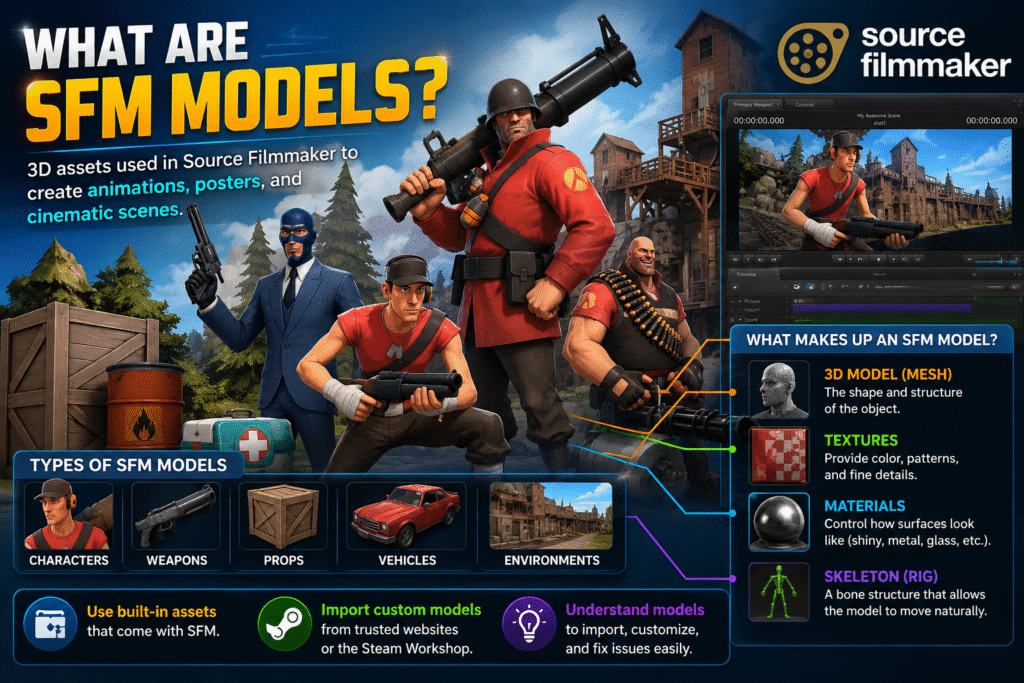
Source Filmmaker models are 3D assets used in Valve’s Source Filmmaker to create animations, posters, and cinematic scenes. These models include characters, weapons, props, vehicles, and environments that help bring a project to life.
A model is more than just a 3D object. It includes textures for appearance, materials for surface details, and a skeleton that allows it to move naturally during animation. All these elements work together to display the model correctly in Source Filmmaker.
You can use the built-in assets that come with SFM or import custom models from trusted community websites and the Steam Workshop. Understanding how these models work makes it easier to import, customize, and troubleshoot them while creating your projects.
Types of SFM Models
The most common types of SFM models include:
- SFM Character Models – Playable characters, NPCs, and custom avatars.
- Prop Models – Everyday objects, furniture, tools, and decorative items.
- Weapon Models – Guns, swords, explosives, and other equipment.
- Vehicle Models – Cars, trucks, aircraft, boats, and other vehicles.
- Environment and Map Models – Buildings, terrain, rooms, and complete scene layouts.
Where to Download SFM Models Safely
Here are some of the most popular websites for downloading SFM models safely:
Steam Workshop
If you’re looking for SFM workshop models, Steam Workshop is one of the safest and easiest places to start. It is integrated with Steam, so you can browse thousands of community-created characters, props, maps, and other assets in one place.
To download a model, open the Source Filmmaker Workshop page, choose the asset you want, and click Subscribe. Steam automatically downloads the files and adds them to your Source Filmmaker library, so you don’t have to move files manually.
Each workshop page also includes screenshots, user ratings, and creator information, helping you choose reliable models with confidence.
SFMLab
SFMLab is a popular community platform for downloading custom SFM models that aren’t available on Steam Workshop. It hosts characters, props, environments, textures, and other assets shared by artists for machinima and 3D animation projects.
Most downloads are available as ZIP or 7Z files. You’ll need to extract the files and install them manually in Source Filmmaker. Many creators also include helpful setup guides with their uploads.
GameBanana
GameBanana is a trusted community website where you can download mods and SFM props for Source Filmmaker. You’ll also find character models, maps, textures, and other community-created assets.
Each download page includes user ratings, screenshots, and community feedback. These details make it easier to find high-quality assets before downloading them.
Open3DLab
Open3DLab is a community platform that offers SFM maps, characters, props, and other assets for Source Filmmaker projects. It is a useful option when you need content that isn’t available on Steam Workshop.
Many uploads include additional resources such as textures, animations, or model variations. Make sure you download all the required files so the asset works correctly in your project.
DeviantArt
DeviantArt is home to many artists who share SFM characters and other custom assets for free. You’ll also find character ports, outfits, accessories, and model packs created by experienced members of the SFM community.
Download models from trusted creators with a good reputation. Use the links provided by the artist and avoid files from unknown or unverified sources. This helps you download authentic assets and reduces the risk of unsafe files.
Sketchfab (Compatible Assets)
Sketchfab offers a large collection of free and paid 3D models created by artists from around the world. Many of these models can be downloaded in formats like FBX or OBJ, making them useful for a blender to SFM workflow.
These models are not ready to use in Source Filmmaker. You’ll need to import them into Blender first, prepare the model, and then convert it before using it in your SFM project.
Essential File Formats Used in SFM Models
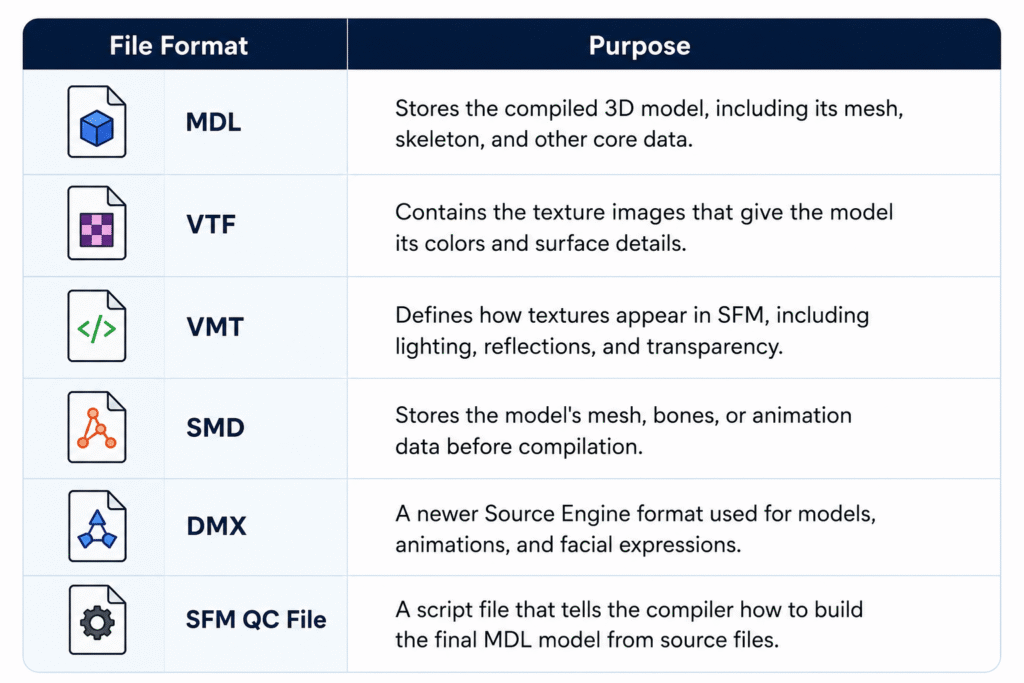
Every SFM model relies on different file formats, and each one has a specific job in displaying, compiling, and animating the model correctly.
How to Import SFM Models
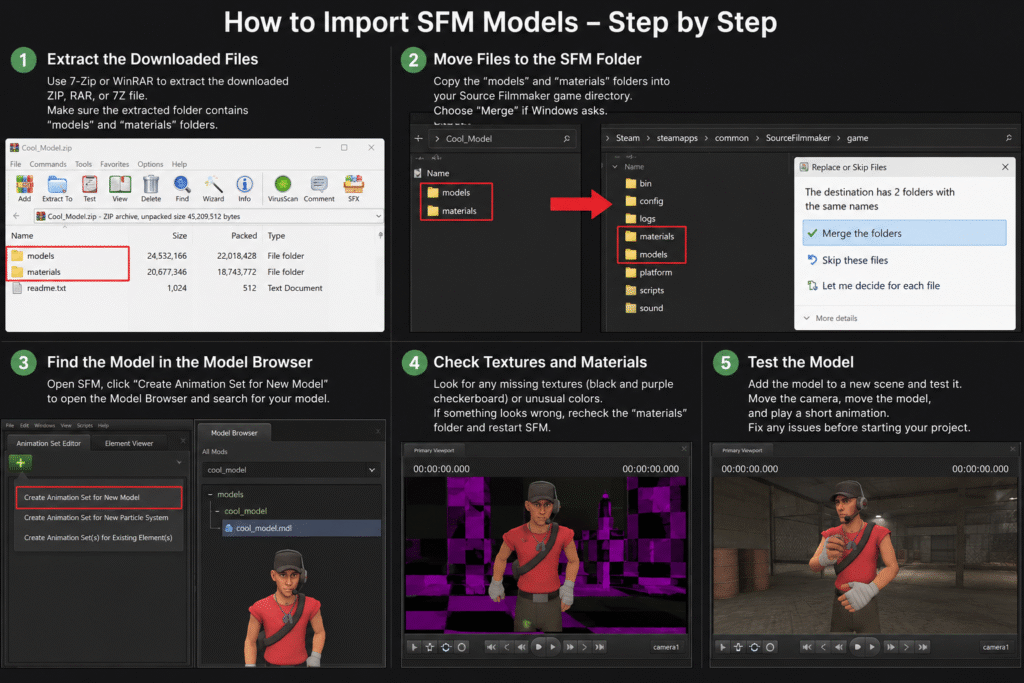
To import models into SFM, follow these steps in the correct order to ensure the model loads properly and works as expected:
Extract the Downloaded Files
Most SFM models are downloaded as ZIP, RAR, or 7Z files to keep all the required files together. Before you can use the model, extract the archive with a tool like 7-Zip or WinRAR.
After extracting, open the new folder and make sure it contains folders such as models and materials. These folders include the files needed to install and display the model correctly in Source Filmmaker.
Move Files to the SFM Folder
Open the extracted folder and locate folders such as models and materials. Copy these folders into your Source Filmmaker game folder so the software can find the new assets.
If Windows asks to merge folders, choose Merge instead of replacing existing files. This keeps your current SFM files intact while adding the new model to your library.
Find the Model in the Model Browser
Open Source Filmmaker and create or open a session. Select Create Animation Set for New Model to open the Model Browser, then browse or search for the model you just installed.
If you can’t find the model, check that the files were copied to the correct folders and restart Source Filmmaker if needed. Some Workshop models may also appear under the Workshop filter in the Model Browser.
Check Textures and Materials
After importing the model, check that all textures and materials load correctly. If you see black and purple checkerboard patterns, missing textures, or unusual colors, some required VTF or VMT files may be missing or placed in the wrong folder.
If you notice any issues, verify that the materials folder was copied correctly and restart Source Filmmaker after making changes. This allows SFM to reload the updated files and display the model properly.
Test the Model
Add the model to a new scene and check that it loads correctly. Rotate the camera, move the model, and play a short animation to confirm that the textures, materials, and skeleton are working as expected.
If you notice SFM errors, such as missing parts, invisible models, or broken textures, review the previous installation steps before continuing with your project. Testing the model early helps you identify and fix problems before you start animating.
How to Create Custom SFM Models
Creating a custom model involves designing, SFM model compilation, and importing it into Source Filmmaker. Follow these steps in the correct order:
Create the Model in Blender
Start by creating your 3D model in Blender using basic shapes or by editing an existing model. Keep the design clean and avoid adding unnecessary details, as simpler models are easier to edit and optimize.
Before moving to the next step, check that the model has the correct shape, scale, and proportions. Fixing these details early saves time and reduces the need for changes later.
Create UV Maps
UV mapping tells Blender how a 2D texture should wrap around a 3D model. Create a UV map before adding textures so the colors and details appear in the correct places.
After unwrapping the model, check the UV layout for overlapping or stretched areas. A clean UV map helps textures appear sharp and prevents visual distortions on the model.
Rig the Model
Rigging is the process of adding a skeleton, also called an armature, to your 3D model. This allows the model to move naturally when you create animations in Source Filmmaker.
After adding the bones, test a few simple movements to make sure the mesh deforms correctly. Fix any parts that bend or stretch incorrectly before moving to the export step.
Export the Model Using Blender Source Tools
After the model is ready, use Blender Source Tools to export it in a Source Engine format such as SMD or DMX. These formats are supported by Crowbar and are used to prepare the model for Source Filmmaker.
Before exporting, check that the correct model and armature are selected. Save the exported files in an easy-to-find folder so you can use them during the compilation step.
Compile the Model with Crowbar
Open Crowbar and load your QC file. During SFM Compile, Crowbar uses the QC file along with the exported model files to create the final MDL file that Source Filmmaker can read.
When the compilation is complete, check the results for any errors or warnings. If the process finishes successfully, your compiled model is ready for the final import step.
Import the Model into Source Filmmaker
After SFM Compilation is complete, copy the compiled model files to the correct Source Filmmaker folders if they are not already there. Then open Source Filmmaker and use the Model Browser to locate and load your new model.
Once the model appears in your scene, check that the textures, materials, and animations work correctly. If everything loads without errors, your custom model is ready to use in your animation project.
Need Help with SEO?
Our team helps brands improve rankings through high-quality backlinks, content marketing, and proven SEO strategies. Let's discuss your goals and create a customized plan to grow your organic traffic.
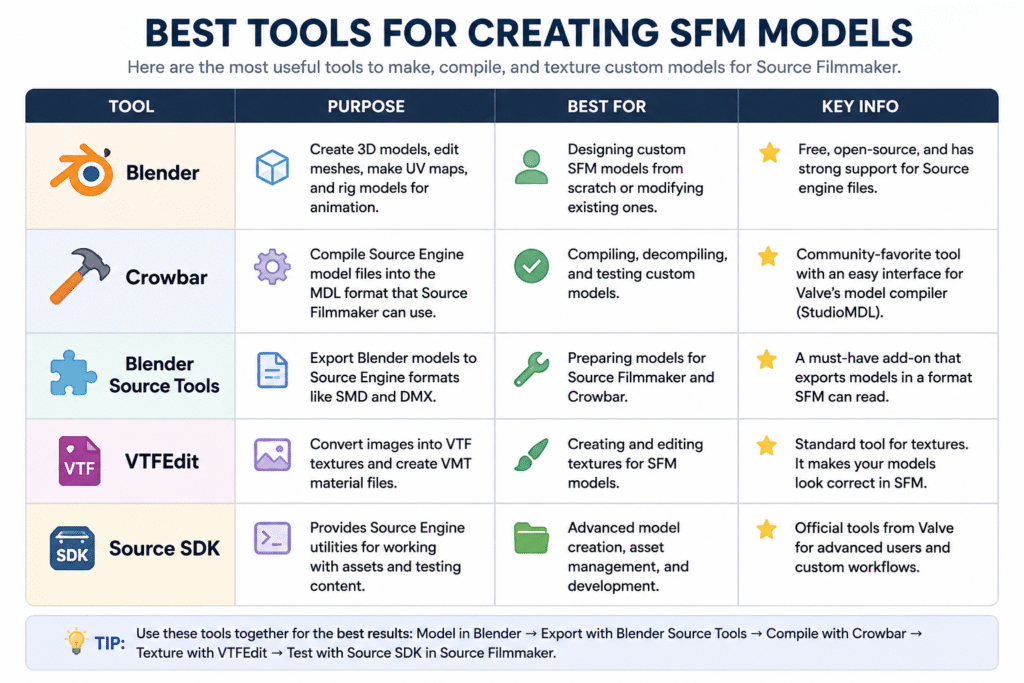
Best Tools for Creating SFM Models
The table below highlights the most commonly used SFM tools, along with their purpose, best use case, and key features.
How to Optimize SFM Models
Use below SFM optimization tips to improve performance and reduce lag.
Reduce Polygon Count
Models with a high polygon count require more processing power and can slow down your scene. Use simpler models whenever possible, especially for background objects that don’t need a lot of detail.
If you’re creating your own model, remove unnecessary geometry without changing its overall shape. This helps improve viewport performance and reduces rendering time, especially in larger scenes.
Optimize Textures
Large texture files use more memory and can affect performance. Choose a texture resolution that matches the model instead of using high-resolution images for every asset.
Remove textures that are no longer needed and compress image files when possible. This reduces memory usage and helps Source Filmmaker load scenes more efficiently.
Optimize Materials
Use only the material settings your model needs. Effects like reflections, transparency, and complex shaders can increase rendering time and reduce performance.
Keep material files simple and remove settings that aren’t being used. Well-optimized materials help models render more efficiently while maintaining a consistent appearance.
Use Level of Detail (LOD) Models
Level of Detail (LOD) models use different versions of the same model with varying amounts of detail. Source Filmmaker can display a simpler version when the model is farther from the camera, helping improve performance.
Use high-detail models for close-up shots and lower-detail versions for background scenes. This reduces the workload on your system without noticeably affecting the final animation.
Optimize Bones and Rigging
Use only the bones your model needs for animation. Extra or unused bones can make the rig more complex and increase the amount of processing required.
Check that each bone is linked correctly and moves the right part of the model. A clean rig makes animations smoother and helps prevent unexpected movement during posing or animation.
Optimize Lighting and Effects
Use only the lights and visual effects needed for your scene. Too many lights, shadows, or particle effects can slow down viewport performance and increase rendering time.
Start with a few lights and add more only when necessary. This keeps your scene easier to manage while maintaining clear and consistent lighting.
Improve Scene Performance
Keep only the models, lights, and effects needed for your scene. Fewer objects make SFM rendering smoother and reduce the time it takes to preview or render your animation.
Close unused animation sessions and remove assets you no longer need. A clean scene is easier to work with and helps maintain consistent performance as your project grows.
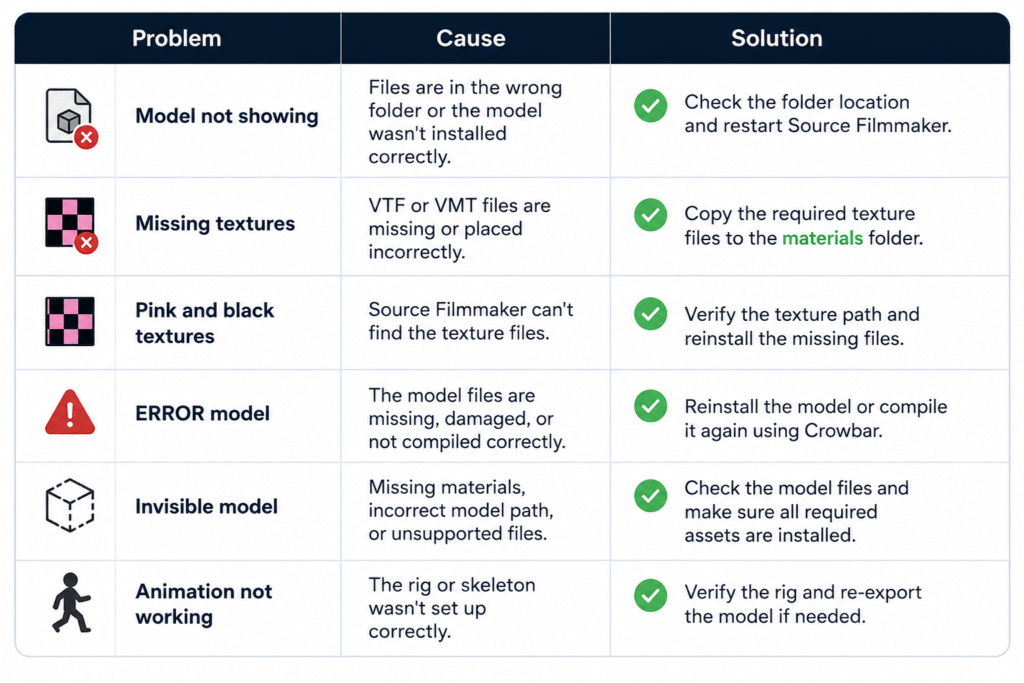
Common SFM Model Problems and Fixes
This SFM tutorial covers common model issues and their solutions. Use the table below for quick fixes.
Best Practices for Managing SFM Models
Use these best practices from this Source Filmmaker guide to keep your models organized and avoid common issues over time.
- Organize Your Model Library: Store characters, props, maps, and other assets in separate folders for easier access.
- Use Clear File Names: Use simple, descriptive names to identify files quickly.
- Keep Backup Copies: Back up custom models before editing or replacing files.
- Remove Duplicate Assets: Delete duplicate or unused models to save storage space.
- Store Related Files Together: Keep model files, textures, and materials in their correct folders to avoid missing file issues.
- Download Models from Trusted Sources: Download models from reliable websites to ensure they are complete and compatible
Wrap Up
Building a smooth workflow starts with understanding how models are downloaded, imported, created, and managed. Following the right steps helps you avoid common issues like missing textures, loading errors, and compatibility problems before they affect your project.
With the right approach, SFM Models become much easier to work with. Use trusted resources, keep your files organized, and optimize your assets regularly to create cleaner scenes and a more efficient animation workflow.
FAQs
How to import models into SFM from Workshop?
Open the model’s Workshop page and click Subscribe. Steam will download the files automatically. Restart Source Filmmaker if needed, then open the Model Browser to find and use the model.
How to convert Blender models to SFM?
Create or edit your model in Blender, export it using Blender Source Tools, compile it with Crowbar, and then import the compiled files into Source Filmmaker.
Can I use models from other Source Engine games in SFM?
Yes. Many models from games like Team Fortress 2, Half-Life 2, and Left 4 Dead can be used in Source Filmmaker after they are extracted and placed in the correct folders.
Are SFM models free to use?
Many SFM models are free to download from community websites. However, always check the creator’s license before using a model in public or commercial projects.
Do all SFM models work with every version of Source Filmmaker?
No. Some models may require additional files, specific Source Engine assets, or manual setup. Always check the model’s requirements before downloading