

You spend hours creating a 3D model. The textures look perfect. The animations are ready. Then you import it into Source Filmmaker, and instead of your character, you see a purple-and-black checkerboard or nothing at all. It is a frustrating moment that almost every beginner experiences.
SFM Compile solves that problem. It converts 3D models from formats like FBX or OBJ into files that the Source Engine can read. It also packages textures, animations, physics data, and other assets using a QC file, so your model loads correctly in Source Filmmaker.
By the end of this guide, you’ll know how to compile models correctly, understand the files created during compilation, avoid common mistakes, and follow a workflow that saves time.
Software You’ll Need for SFM Compile
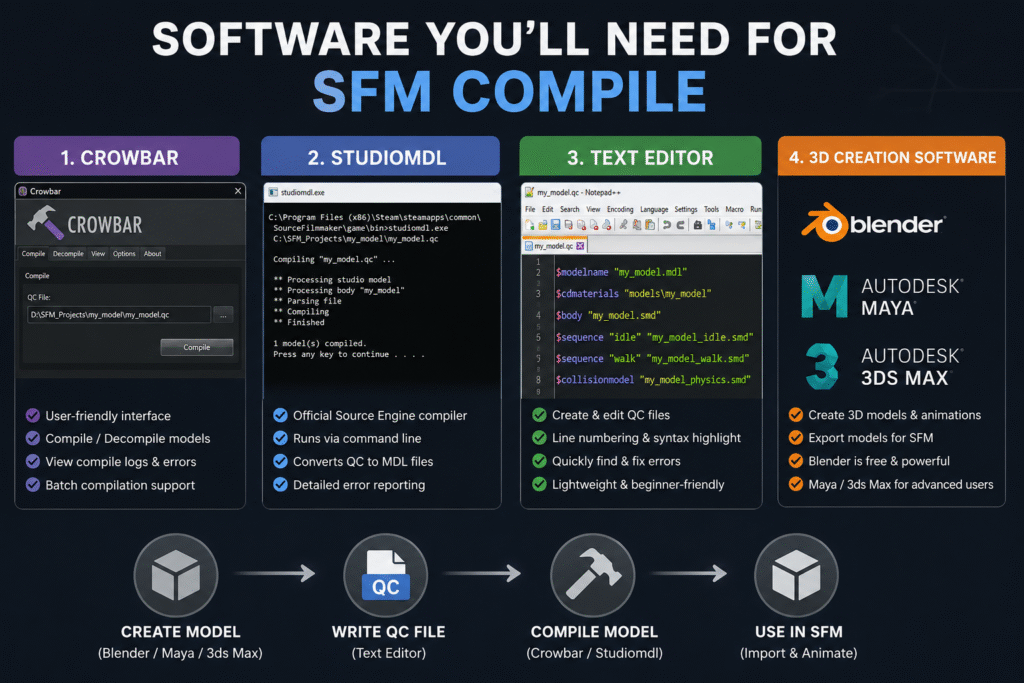
Before you compile a model, you need a few essential tools. Each piece of SFM compile software has a specific job in the workflow.
Crowbar Compilation Tools
Crowbar is one of the most popular tools for compiling Source Filmmaker models. Instead of typing long command-line instructions, you can compile models through a simple interface. This makes the process much easier, especially if you’re new to SFM.
You can use Crowbar to compile or decompile models, check compile logs, and quickly spot errors if something goes wrong. It also supports batch compilation, so you can process multiple models without repeating the same steps for each one.
Studiomdl Command Line Utility
Studiomdl is Valve’s official model compiler for the Source Engine. It is included with the Source Filmmaker installation and is usually located in the bin folder. The tool reads your QC file and converts your model into the MDL files that Source Filmmaker can load.
Unlike Crowbar, Studiomdl runs through the command line, so you need to enter compile commands manually. It gives you more control over the compilation process. It also shows detailed error messages that help you find and fix problems.
Text Editor Needs
You’ll also need a text editor to create and edit QC files. Notepad++ is a popular choice because it is lightweight, easy to use, and works well with plain text files.
Features like line numbering and syntax highlighting make QC scripts easier to read. If the compiler reports an error, you can quickly find the correct line and fix the problem without searching through the entire file.
3D Creation Software
Every SFM project starts with a 3D modeling program. Blender is the most popular choice because it’s free, powerful, and supports plugins that simplify exporting models for Source Filmmaker.
Professional artists may also use Autodesk Maya or 3ds Max to create custom models and animations. These are paid tools with advanced features, but for most beginners and hobbyists, Blender provides everything needed to build and prepare models for compilation.
SFM Compile: A Step-by-Step Guide
The SFM compile process follows a series of simple steps. Completing each one in the right order helps your model compile correctly and reduces errors.
Set Up Your Model Assets
Organize your model, textures, materials, and QC file into the correct folders before compiling. A clean folder structure helps the compiler locate every file and prevents path-related errors.
Keep your model optimized and use Source Engine bone naming conventions. Export the main model and collision mesh as separate SMD files. Also, verify that all VMT and VTF material files are in the correct location. Missing material files or incorrect paths usually cause the purple-and-black checkerboard texture in Source Filmmaker.
Before compiling, check that every file name and path matches the entries in your QC file. This simple step can prevent many common compile errors.
Write a Valid QC File
An SFM QC file tells the compiler how to build your model. It defines where your model files are stored, where to save the compiled output, which materials to use, and which animations or physics data to include.
| QC Directive | Purpose |
| $modelname | Sets the name and output location of the compiled model. |
| $body | Specifies the main SMD model file to compile. |
| $cdmaterials | Points to the folder containing your material (VMT) files. |
| $sequence | Adds animation sequences to the compiled model. |
| $collisionmodel | Defines the collision mesh used for physics interactions. |
Before compiling, review every file name and folder path in the QC file. A single typo or missing file reference can prevent the model from compiling successfully.
Run the SFM Compiler
Once your model assets and QC file are ready, it’s time to run the SFM compiler. If you’re using Crowbar, open the Compile tab, select your QC file, and click Compile. Crowbar displays the compile log in a readable format, making it easier to spot missing files or incorrect paths.
If you’re using studiomdl.exe, open the command line, navigate to the bin folder in your Source Filmmaker installation, and run the compiler using your QC file as the input. After the process finishes, review the compile log for warnings or errors before importing the model into Source Filmmaker.
Perform Final Model Testing
Open Source Filmmaker and load your compiled model into a new scene. Check that the model appears correctly, the textures load properly, and the animations play without errors. Move the model’s joints to confirm the bones are working as expected.
If you notice missing textures, distorted meshes, or physics problems, review the compile log first. The log often identifies the QC directive or file that caused the issue, making it much faster to find and fix the problem before compiling again.
Need Help with SEO?
Our team helps brands improve rankings through high-quality backlinks, content marketing, and proven SEO strategies. Let's discuss your goals and create a customized plan to grow your organic traffic.
Understanding SFM Compile Output Files
Every successful compilation generates several output files. Each file has a specific role, and if one is missing, your model may not load or function correctly.
| File | Purpose |
| .MDL | The main model file that Source Filmmaker loads. |
| .VVD | Stores vertex data used to render the model correctly. |
| .DX90.VTX | Contains optimized mesh data for DirectX 9 rendering. |
| .SW.VTX | Stores mesh data for software rendering compatibility. |
| .PHY | Holds collision and physics information if the model uses physics. |
| .ANI | Stores animation data for some compiled models. |
If any required output file is missing or corrupted, Source Filmmaker may fail to load the model or display it correctly.
Common SFM Compile Errors and Their Solutions
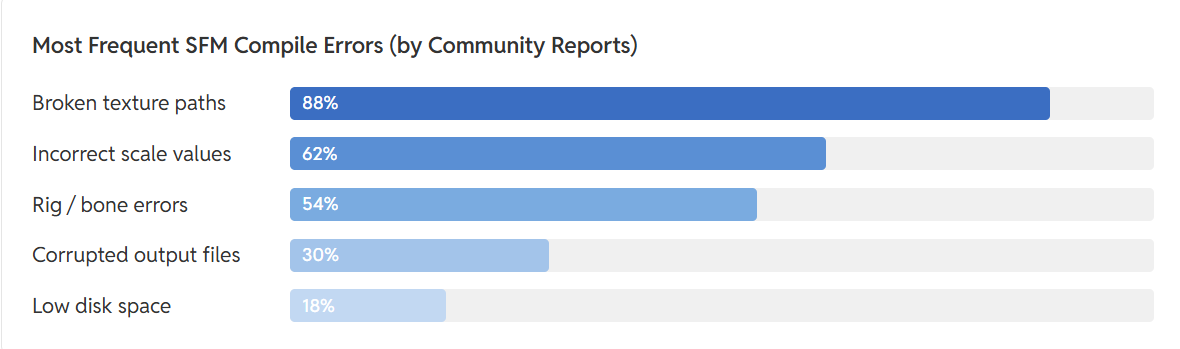
Source: FOSS post
Most common SFM compile errors are caused by missing files, incorrect QC settings, or invalid file paths. The compile log usually identifies the file or QC directive responsible.
| Error | Cause | How to Fix It |
| Purple-and-black checkerboard textures | Missing or incorrect VMT/VTF files, or an invalid $cdmaterials path | Verify the material files exist and update the $cdmaterials path in the QC file. |
| Model is invisible or the wrong size | Incorrect export scale or unit settings | Re-export the model using the correct scale and apply transforms before exporting. |
| Bones don’t move correctly | Missing or incorrectly named bones, or rigging errors | Check the skeleton hierarchy and use Source Engine bone naming conventions. |
| Model fails to compile | Missing SMD files, incorrect file paths, or QC syntax errors | Review the compile log and fix the reported file path or QC directive. |
| Source Filmmaker crashes when loading the model | Corrupted compile output or unsupported model data | Recompile the model after fixing errors and replace any damaged output files. |
SFM Compile Workflow Best Practices
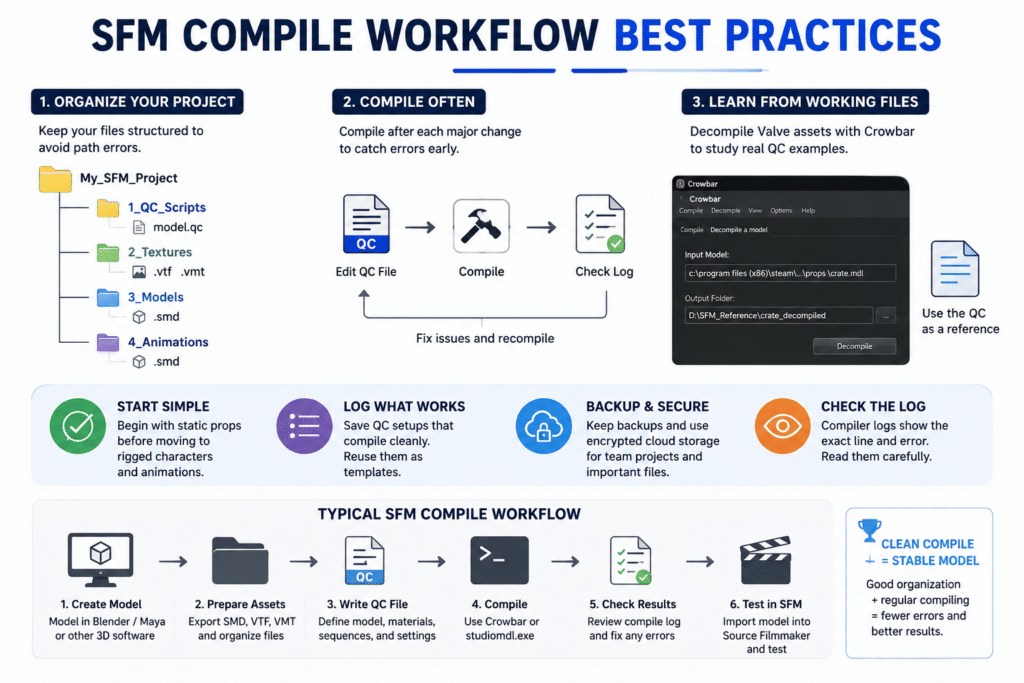
Following a few SFM compile best practices can help you avoid repeated errors and make your workflow easier to manage.
- Organize your project into separate folders for models, textures, materials, and QC files. This keeps file paths consistent and reduces compile errors.
- Save a copy of every QC file that compiles successfully. You can reuse it as a template for future projects.
- Start with simple static models before compiling animated characters or complex rigs.
- Compile after every major change instead of making multiple edits at once. This makes it easier to identify what caused an error.
- Decompile Valve’s default models with Crowbar to study working QC files and folder structures.
- Keep backup copies of your project files. If you’re working with a team, use secure cloud storage with version history to avoid losing changes.
SFM Compile Checklist Before and After Compilation
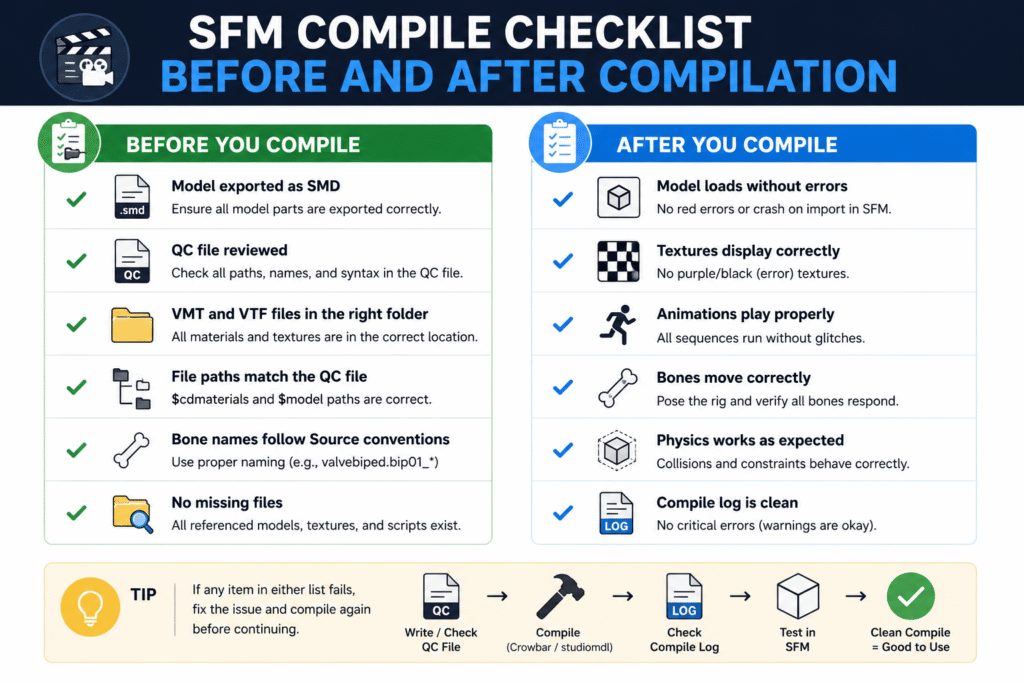
A quick checklist helps you catch small mistakes before they become compile errors. Review these points before compiling and after importing your model into Source Filmmaker.
Beginner’s Guide to SFM Compile
SFM compile for beginners becomes much easier when you learn one step at a time. Start with simple models, understand the basics, and build confidence before working on complex projects.
Start with a Simple Low-Polygon Model
Start with a simple static prop instead of a fully rigged character. A low-polygon model with a single texture is easier to compile and helps you learn the workflow without dealing with bones, animations, or complex physics.
Once the model compiles successfully, test it in Source Filmmaker to confirm it loads correctly. After that, you can move on to animated models and more advanced projects.
Install and Set Up Your SFM Tools
Install Crowbar, studiomdl.exe, and a text editor like Notepad++ before you start compiling models. Also, confirm that Crowbar points to the correct studiomdl.exe location, or the compile process won’t run.
Keep your project files in one workspace with separate folders for models, textures, materials, and QC files. A well-organized setup reduces file path errors and makes the entire workflow easier to manage.
Create Your First QC File
Create your first QC file manually, even if Crowbar can generate one automatically. Writing it yourself helps you understand what directives like $modelname, $body, and $cdmaterials actually do, making future troubleshooting much easier.
Start with only the essential directives and confirm the model compiles successfully. Once the basics work, you can add animations, collision models, and other advanced settings as your project grows.
Compile and Test Your Model
Don’t wait until your entire project is finished before compiling. Compile the model after each major change, then load it in Source Filmmaker to check that the model, textures, and animations work as expected.
If you find a problem, review the compile log, fix the issue, and compile again. Testing in small steps makes errors easier to identify because you know exactly which change caused them.
Study Existing Decompiled Models
Use Crowbar to decompile Valve’s default models and examine their project files. Looking at real QC files, folder structures, and material paths is one of the fastest ways to understand how a correctly compiled model is organized.
Don’t copy these files directly. Instead, use them as a reference to learn naming conventions, QC directives, and project layouts. This approach helps you avoid common mistakes when creating your own models.
Read More About:- Cybersecurity SEO Agencies
Wrap Up
Learning SFM Compile is less about memorizing commands and more about following a consistent workflow. Organizing your files, creating a clean QC file, checking the compile log, and testing after every change will help you solve most problems before they become difficult to fix.
As your experience grows, you can move from simple props to fully animated characters and more advanced projects. Keep practicing, study working models, and improve your workflow one step at a time. A solid understanding of the compile process gives you the confidence to create reliable custom assets for Source Filmmaker.
FAQs
What file types does SFM Compile accept?
SFM Compile uses SMD, DMX, and QC files as input. After compilation, it generates files like MDL, VVD, VTX, and PHY for the Source Engine.
Why does my model show purple-and-black checkerboard textures?
This usually means the material files are missing or the texture path is incorrect. Check the VMT, VTF, and $cdmaterials entries in your QC file.
How long does SFM Compile take?
Simple models usually compile in a few seconds. Larger models with animations or multiple LODs can take several minutes, depending on your computer.
Does SFM Compile work with Source 2?
No. SFM Compile is designed for the original Source Engine. Source 2 uses a different asset pipeline and requires different tools.
Do I need programming knowledge to use SFM Compile?
No. You only need to edit a QC file with basic text commands. Most beginners can compile simple models without any programming experience.